
Unforgettable car trend CapCut template: what it can and can't do
Skip the filming, use my photoA CapCut template arranges the clips you give it, so the car has to be in your footage. Here is how to edit the filmed version in CapCut, and the one-photo way if you have no car.
- CapCut template: needs your own footage with the car
- In CapCut: cut on the covered frame, reveal on the beat
- No car: one photo of you here
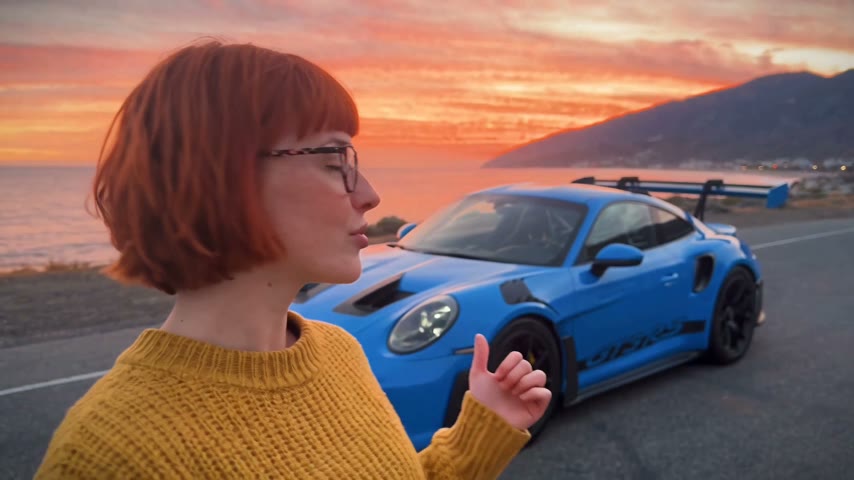
Is there an Unforgettable car trend CapCut template?
Yes, CapCut users publish them. Search "Unforgettable car" or "24 car trend" in the Templates tab of the CapCut app and you will usually find a few. The list changes from week to week, and some carry a Pro badge, so check before you build your edit around one.
A standard Unforgettable car trend CapCut template fills its slots with the clips you choose. It times your cuts and can add the song, but it does not add a car that is not in your footage. To use one you still need the two takes, which means a real car.
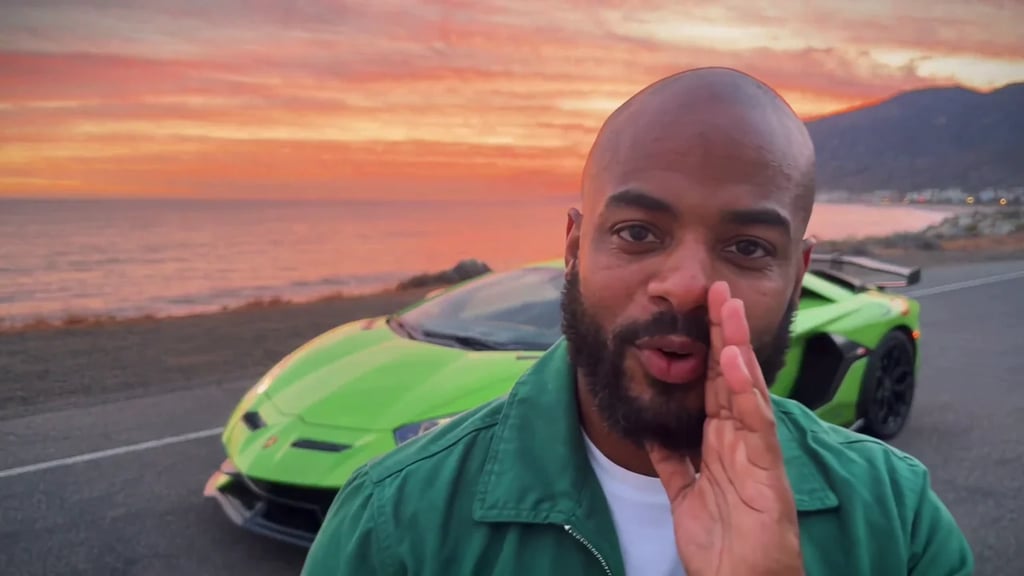
CapCut template, Dreamina + CapCut, or one photo here
People mean three different things when they say they made it "with CapCut". Here is what each one needs and where the car comes from.
| CapCut templateEdits clips you filmed | Dreamina + CapCutGenerate, then editGet the prompt | One photo hereNo filming, no editingUse my photo | |
|---|---|---|---|
| What you need | Two takes you filmed, with a real car parked behind you in the second | Prompts for the person, the cards and the car, then CapCut to join the clips | One photo of you; a car photo only if you want your own car |
| Where the car comes from | Your footage; a standard template does not add one | Generated from your prompt, so check it stays the same car and arrives after the cards | A preset supercar or a photo of your own car, parked behind you after the swipe |
| Time it takes | Filming two takes, then a few minutes of editing | Several generations, then editing | About 8 minutes, no editing |
| Cost | CapCut is free; some templates and effects need CapCut Pro | Dreamina credits, plus CapCut for the edit | 30 free credits on sign-up for one 2-second preview, then $9.90 for a full video |
| What you get | Whatever you filmed, on the template's cuts | Whatever setting you prompt, after a few runs | 10 seconds, 16:9, 720p, no watermark |
| Good for | Owners filming their own car | People who want their own setting and don't mind retries | Getting the reveal without a car, a tripod or an editor |
How to edit the filmed 24 car trend in CapCut
Two takes and one cut. The cards hide the cut, so the car seems to appear out of nowhere.
- 1
Film the card take
Phone on a tripod or propped up at chest height (or a friend holding it still), the road behind you empty. Talk to the camera, hold up the +2 and the +4, then push them into the lens until they cover the whole frame. Stop recording there.
- 2
Film the reveal take
Same spot, same framing, now with the car parked behind you. Start with the cards covering the lens, then pull them away and react to the car.
- 3
Join them on the covered frame
In CapCut, put the card take first and trim its end to the frame where the cards fill the screen (move the playhead there, tap Split and delete the rest). Trim the start of the reveal take to its first fully covered frame. Played together, the cut hides inside the cards.
- 4
Add the sound
If "Unforgettable" is in CapCut's sound library, add it now and line it up in the next steps. If it isn't, export without music and add TikTok's "Unforgettable" sound when you post.
Put the car reveal on the beat in CapCut
This works when the song is in your CapCut project. Start with the music, then move it to the video.
- 1
Mark the beats
Select the audio track and turn on beat marks (Beats or Auto beat, depending on your CapCut version). Markers appear on the waveform.
- 2
Put the reveal on a strong beat
Drag the music, not the video, so a strong beat marker lands on the first frame where the lens clears, the moment the car should land.
- 3
Keep the swipe as the only transition
Don't add a flash or a wipe on top. The card swipe is the transition, and an extra effect over it gives the trick away.
- 4
Play it back, nudge, export
Watch it a few times. If the reveal feels late, nudge the music a few frames rather than moving the cut, then export.
The Dreamina + CapCut route from TikTok tutorials
Some TikTok how-tos for the Unforgettable car trend generate the scene with Dreamina, the AI generator from CapCut's maker, then join and sync the clips in CapCut. It lets you choose any setting, but you write the prompt and check every run: the cards need to read +2 and +4, the car has to stay the same car, and it should only appear after the cards clear the lens.
Our prompt guide has a full prompt for the trend and fixes for those exact problems.
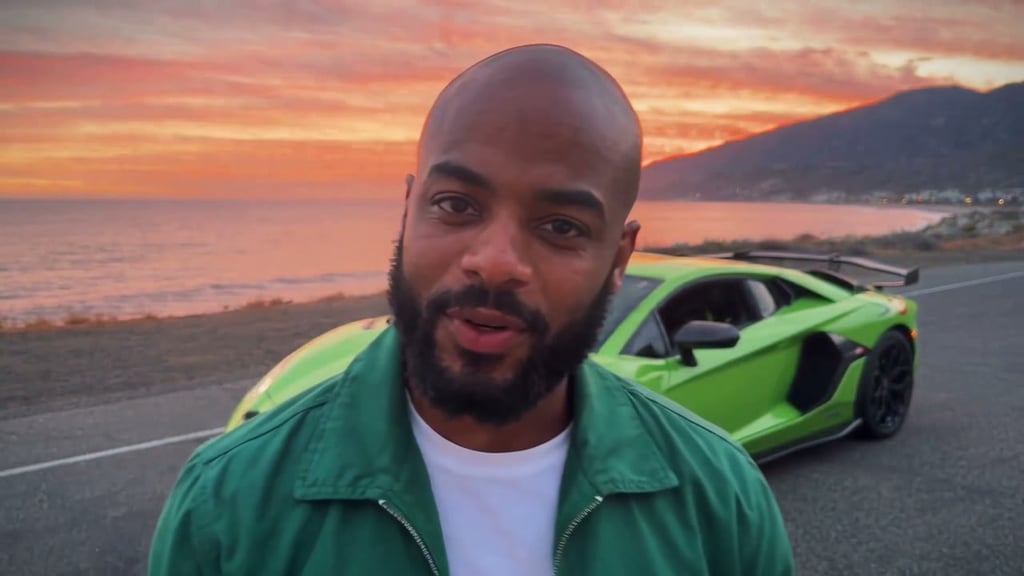
No car to film? Make it from one photo
Add one photo of you, then pick a car or add a photo of your own. New accounts get 30 free credits, enough for one 2-second preview.
You and your car
Add your photo · the car is optional
Your car
See the first 2 seconds free. The full video is 600 credits.
Your photo: one person, face clearly visible. Car photo: the whole car, side or front three-quarter view. JPG, PNG or WebP up to 10 MB.
- No app
- No watermark
- Credits back if a video fails
Edit your AI car video in CapCut
The video you make here already has the swipe and the reveal, so you don't need a template. Post it as it is, or bring it into CapCut to crop or caption it.
- 1
Crop to 9:16 for full screen
Download the clip from My videos, add it to a new CapCut project, switch the canvas to 9:16 and zoom in. The crop keeps about the middle third of the frame, so keep the car in view after the swipe.
- 2
Choose the sound
The clip keeps the sound of the clip it is based on. If you would rather use TikTok's "Unforgettable" sound, turn the clip's volume down in CapCut or when you post.
Unforgettable car trend CapCut template: questions
Yes, CapCut users publish them; search "Unforgettable car" or "24 car trend" in the Templates tab. Most need your own footage with the car already in it, so check how many clips a template asks for before you film.
Not with a standard template. A template edits the clips you give it, so the car has to be in your footage. Without a car, you can make the reveal from one photo of you on this site.
CapCut is free to use and many templates are too, but some templates and effects need CapCut Pro. Look for the Pro badge on a template before you use it.
No. It already has the card swipe and the reveal. Bring it into CapCut only if you want to crop it to 9:16 or add captions.
The cut is on a frame where the cards don't cover the whole lens yet. Move it to a frame where the screen is fully covered in both takes.
More Unforgettable car guides
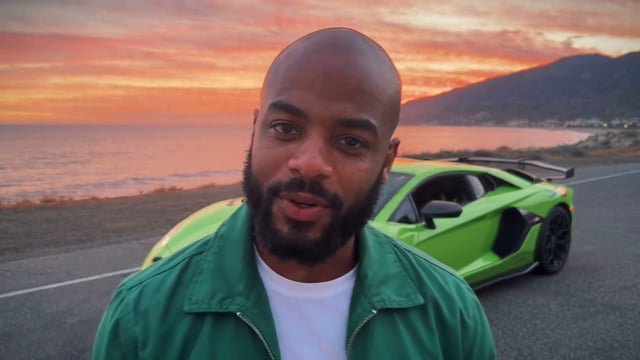
How to make the Unforgettable AI car video
There are three ways to make the Unforgettable AI car video, the 24 car trend where a supercar appears behind you after an UNO card swipe: film it with a real car, write a prompt for an AI video tool, or add one photo of you here and pick the car. This guide walks through the photo-only way step by step, then shows how to turn the finished clip vertical and post it on TikTok.
What is the Unforgettable car trend?
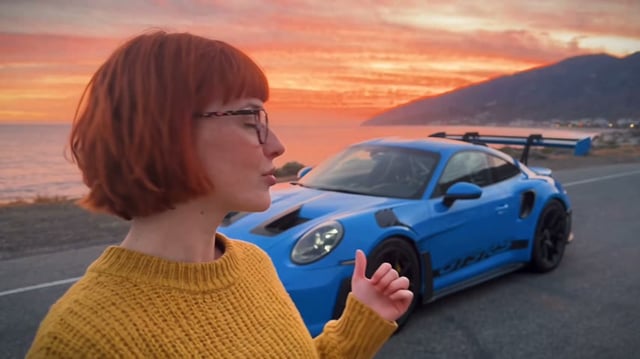
The Unforgettable car trend is a short selfie video with a twist: you talk to the camera, hold up two green UNO cards, a +2 and a +4, and sweep them across the lens. When the cards clear, a supercar is suddenly parked right behind you. It runs to the song "Unforgettable" by French Montana and Swae Lee, and it is also called the 24 car trend.
Unforgettable car trend AI prompt
Below is a full Unforgettable car trend AI prompt to copy into an image-to-video tool, a second-by-second version, what happened when we ran it once in Kling 3.0 Turbo, and fixes to try. Rather not write a prompt? Make it here from one photo; the card swipe and timing come from the trend's clip.
No car, no template, no editing
One photo of you and the car of your choice.